Compatibility & scope
Based on Samsung's EU English e-manuals for M- to H-series TVs (as listed on Samsung UK support pages) and US English e-manuals for 2023 and 2025. Manuals are shared by many models; the covers don't list every model. The manuals describe only where Device Connection Manager is and one-line summaries of Access Notification and Device List. They don't describe the connection pop-up beyond selecting Allow when first turning on Tap View, any Deny option, how to reverse a refused connection, or what turning Access Notification off does to permission. This page doesn't establish that any particular phone app can connect to or control a Samsung TV. Documentation reviewed; no TV, phone or app tested for this article.
In this guide
What Device Connection Manager does
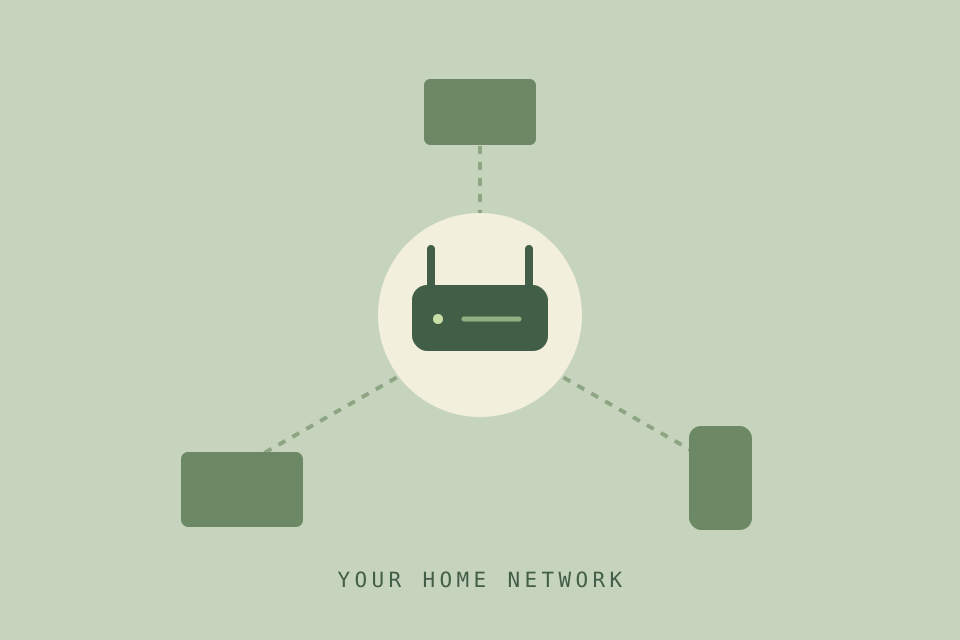
Device Connection Manager is the Samsung TV setting that keeps track of phones, tablets and other devices on your home network that connect to the TV to share content. Samsung’s US manuals call it Device Connect Manager. It has two options:
- Access Notification: whether the TV shows a notification when a phone or tablet tries to connect. The 2017 manual says this is for a device’s first attempt to connect.
- Device List: the devices registered with the TV. Samsung’s manuals describe it as the list of devices that have asked for permission (2017), one you can “view, edit, or remove” (2018), and one you can “manage” (2019 onwards).
This page shows where the setting is and what Samsung documents about it. Samsung’s manuals don’t explain the connection pop-up in detail, so this page can’t promise to undo a refused connection. See If you pressed Deny or a phone can’t connect.
Find Device Connection Manager on your TV
Find the row that matches how your TV’s menu looks:
| Your TV’s menu | Path to Device Connection Manager |
|---|---|
| Settings on the Home screen leads straight to General, with no All Settings step (2017–2021 TVs: M, N, R, T and A series) | Home → Settings → General → External Device Manager → Device Connection Manager |
| Home shows a Menu item (2022 B-series TVs) | Home → Menu → Settings → All Settings → Connection → External Device Manager → Device Connection Manager |
| Left directional button opens the menu; All Settings → Connection contains External Device Manager | Home → left directional button → Settings → All Settings → Connection → External Device Manager → Device Connection Manager |
| Left directional button opens the menu; All Settings has Connections (with an s), which lists Device Connection Manager directly | Home → left directional button → Settings → All Settings → Connections → Device Connection Manager |
The third layout is in Samsung’s US manuals for 2023 and 2024 TVs and the UK manual for some small and budget models (such as the UE32H5000F and UE24F6000F). The fourth is in the UK manuals for C-, D-, F- and H-series TVs and the US manuals for 2025–2026. On a US TV, look for Device Connect Manager instead.
Check the notification and the device list
- Open Device Connection Manager using the path for your menu.
- Select Access Notification and check its setting. If you want the TV to tell you when a phone or tablet tries to connect, it should be on.
- Select Device List to see the devices registered with the TV.
- To change an entry, highlight it and look at the options the TV offers. The 2018 manual says you can edit or remove entries; later manuals say only that you can manage the list.
Samsung doesn’t describe the Device List screen beyond that, so the options shown depend on your TV’s software.
If you pressed Deny or a phone can’t connect
What Samsung documents, and what it doesn’t:
- The pop-up: the manuals mention a TV pop-up in one place only. When you first turn on Tap View in the SmartThings app, you “select Allow” on a pop-up on the TV. No manual describes a Deny button, what happens after you refuse, or how to change that choice later.
- Device List is the only documented place to manage registered devices. Whether a refused device appears there, and whether removing an entry makes the TV ask again next time, isn’t documented.
- Access Notification controls whether the TV shows the notification. The manuals don’t say that turning it off lets devices connect without asking, so don’t turn it off for that reason.
For Samsung’s own SmartThings app, the 2026 manual gives a documented route when the phone remote stops working: reconnect the TV from the SmartThings app, and if that fails, delete the TV in the app and register it again. See Use your phone as a Samsung TV remote for the registration steps.
For other apps, follow the app maker’s instructions. Samsung’s manuals don’t cover third-party apps.
IP Remote is a separate setting, under the network’s Expert Settings. Samsung warns that turning it on may let other IP control devices control the TV, and recommends it only for an authorised controller set up for Samsung TVs on a password-protected Wi-Fi network. See Power On with Mobile and IP Remote.
Give the TV a name you’ll recognise
The TV’s name is how it’s identified on your home network. If you have more than one Samsung TV, Samsung suggests giving each a different name so you can easily pick the right one when connecting from a phone.
| Your TV’s menu | Path to the TV’s name |
|---|---|
| Settings leads straight to General (2017–2021 TVs) | Home → Settings → General → System Manager → Device Name |
| Home shows a Menu item (2022 B-series TVs) | Home → Menu → Settings → All Settings → Connection → Device Name |
| Left directional button opens the menu; All Settings has Connection | Home → left directional button → Settings → All Settings → Connection → Device Name |
| Left directional button opens the menu; All Settings has Connections (with an s) | Home → left directional button → Settings → All Settings → Support → About The TV → Edit Name |
With Device Name, select User Input at the bottom of the list to type your own name. US manuals spell the last menu About TV.
Sources & scope
Pages 13, 18, 191, 294
View sourceSamsung UK download listed for the QE65QN70HAU and other H-series TVs. Consulted: IP Remote and Changing the name of the TV, Enabling Tap View (the Allow pop-up), Managing External Devices (Device Connection Manager) and The mobile remote control does not work. Path icons checked visually on pages 13 and 191.
Pages 13, 191
View sourceSamsung UK download listed for C-series TVs such as the UE85CU7110K. Device Connection Manager directly under Connections; Edit Name under Support → About The TV. The manual Samsung UK lists for D- and F-series TVs (BN81-27185C-660, pages 13, 189) matches it.
Pages 11, 176
View sourceSamsung UK download listed for small and budget models such as the UE32H5000FK, UE24F6000FK and QE40Q5FAA. Device Connection Manager under Connection → External Device Manager; Device Name under Connection.
Pages 11, 155
View sourceSamsung US download for the QN65QN90CAFXZA. US manuals spell the menu Device Connect Manager. This C-series manual uses Connection → External Device Manager; the 2024 US manual (BN81-25561A-820, pages 11, 160) matches it.
Pages 12, 180
View sourceSamsung US download for the QN65QN90FAFXZA. Connections → Device Connect Manager; Edit Name under Support → About TV. The 2026 US manual (BN81-28760A-140, pages 12, 174) matches it.
Pages 14, 16, 174
View sourceSamsung UK download listed for B-series TVs such as the QE50LS03BGU. Paths start Home → Menu. The US 2022 manual (BN81-22795A-690, page 160) has the same path with the US spelling.
Pages 10, 12, 126
View sourceSamsung UK download listed for T-series TVs such as the QE55Q90TAT. Settings → General → External Device Manager → Device Connection Manager. The A-series (OSNDVBEUA-8.0.3, pages 11, 14, 146) and budget T-series (KT2DVBEUT-2.4.0, pages 10, 11, 95) manuals match it.
Pages 26, 33–34
View sourceSamsung UK download listed for N-series TVs such as the QE65Q7FNAT. Describes Device List as view, edit or remove, and advises different TV names when you have more than one TV. The small N-series manual (KSFDVBEUN-1.2.0, pages 17, 26) has the same wording; the R-series manual (MUSDVBEUR-3.0.6, pages 26, 126) uses the later wording.
Pages 20, 28
View sourceSamsung UK download listed for M-series and some N-series TVs. PDF page numbers; the printed page numbers are 6 lower (14, 22). Section titled Managing a Mobile Device: notification on a device's first connection attempt; Device List of devices that requested permission. Path icons checked visually on page 28.
These instructions are based on manufacturer documentation. They have not been device-tested for this guide.
Based on Samsung's EU English e-manuals for M- to H-series TVs (as listed on Samsung UK support pages) and US English e-manuals for 2023 and 2025. Manuals are shared by many models; the covers don't list every model. The manuals describe only where Device Connection Manager is and one-line summaries of Access Notification and Device List. They don't describe the connection pop-up beyond selecting Allow when first turning on Tap View, any Deny option, how to reverse a refused connection, or what turning Access Notification off does to permission. This page doesn't establish that any particular phone app can connect to or control a Samsung TV. Documentation reviewed; no TV, phone or app tested for this article.